

Stripped Down Profits Review
This is not a review of Stripped Down Profits – this is me giving you my opinion on the sales page. I haven’t seen or used the product they are selling, but if the sales page is anything to go by, stay well clear of it.
Start of meaningful words.
Sometimes in life all you need is a break.
A chance encounter with a stranger could change your life forever.
You could be working in a strip club, and a client comes along, gives you money, and you show him boobies (.) (.) roflcoptorpmslw00tetc
But this client isn’t any client, he just happens to be a top secret internet marketing guru ninja.
You ply this unnamed ninja guru with more booze, drugs and boobies than his mind can handle, and you then threaten to show his wife and kids the implicating video of said debauchery if the guru ninja doesn’t show you how to make a billion dollars on the internet.
As I said, sometimes all you need in life is a break.
And well done to the delightful Haley Milano for seizing her break with both hands.
Not only did she blackmail (yeah…she went there) a successful guru into giving her all his secrets, she then used those secrets to become an overnight Clickbank millionaire at the touch of a button.
But that’s not all, this girl just can’t stop giving….sorry, bad turn of phrase.
She’s decided that “Doing nothing but figuring out how to spend your money and avoid paying taxes” sucks….sorry, cheap joke, that’ll be the last of them, so she’s selling the “1 touch money making software” that she’s using to crank out millions of dollars on auto-pilot.
And get this, she’s selling it for just $47, what a gal, I wonder if she’d marry me.
Hmmm, but wait a minute, I’m having pre-wedding jitters.
After commission and Clickbank fees, Hayley will only be getting around $20 per sale, and imagine the amount of support she’ll have to do.
Why would she want to make $20 per sale selling her 1 touch millionaire making software, when she could carry on using the software herself to churn out the wonga.
Maybe my jitters are right, I need to do more research before asking her to become Mrs Thompson.
So I’ll start with the sales page.
And before I go on, full credit to everyone in this forum thread who has done some digging on the product, I don’t deserve full credit (if any) for the detective work below.
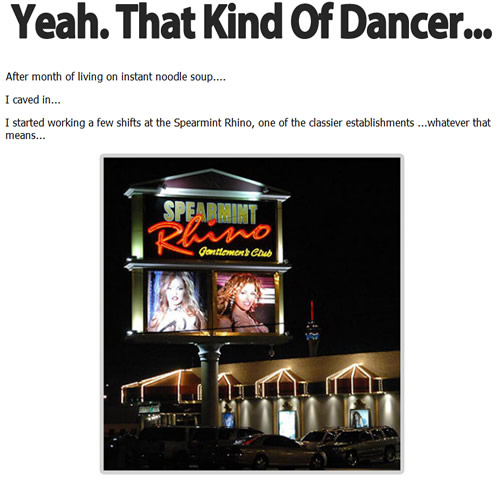
The first thing that catches my eye is that Haley used to work in Spearmint Rhino’s before getting her break, that doesn’t bother me at all, I would have no issues marrying a stripper. Moving on.
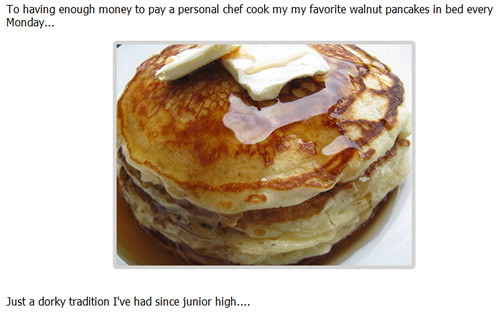
I can see that she also likes pancakes, I like pancakes too, maybe she is “the one”.
Hmmmm, but then she says that her personal chef cooks them for her every morning. That sounds a little bit lazy to me, but we all have our flaws. I can live with her being a little bit on the lazy side.
As I scroll further down the page, I see that Hayley Milano (google approves of my misspelling) has posted a picture of some gurus enjoying a few drinks in what I assume must be some sort of private party.

If I right click on the image and look at the file name, it looks to be a picture of a bachelor party in Atlantic city. Apparently there isn’t a Spearmint Rhino club in Atlantic city, Haley must have got that picture off a friend or something.
Or maybe she’s just using a stock photo to represent what a group of Gurus sipping a few drinks MIGHT look like.
Because if you do a search for “Bachelor party atlantic city” on Google images, the very same picture comes up, and can be found on the following site:
http://www.destination360.com/north-america/us/new-jersey/atlantic-city/bachelor-party-atlantic-city
They must’ve nicked that picture off Haley’s page, the swines.
Never mind, I can understand Haley using a stock photo to represent what gurus drinking MIGHT look like, it makes sense, I might even start looking for honeymoon destinations….
I’m getting excited now, carrying on down the page I can see this:

SHE BOUGHT HER PARENTS A HOUSE!!!
She is the girl of my dreams, if she got her parents a house just because they produced her, what will she buy the love of her life….I want a plane and a dolphin please Haley Milano of Stripped Down Profits. (in that order)
Just out of interest, I think I’ll right click on the image of her parents house, then do a search for the filename on Google images…
Hmmm, that’s strange, Haley’s parents house looks exactly like this one:
http://www.arcadiahomesinc.net/2_story_Colonial_Farm_House_1.htm

Maybe there’s an innocent explanation for this, maybe instead of taking an actual picture of the house, she decided to use one off a website to represent the house. Yeah….that makes sense, I wonder what sort of ring she’ll like, probably something big and tasteless.
WOW, not only did she buy her parents a house, she then retired at 29 and bought herself what looks like a god awful apartment, and she then created her own range of designer handbags.
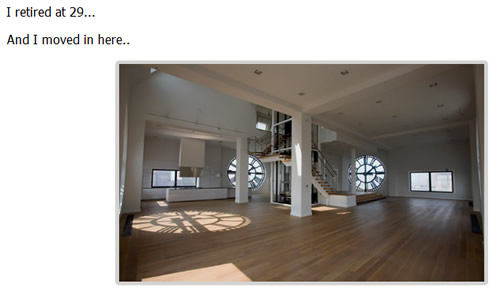
Again, just out of interest I’ll do an image search for the filename of Haleys house…….WAIT A MINUTE, WHAT IS THIS:
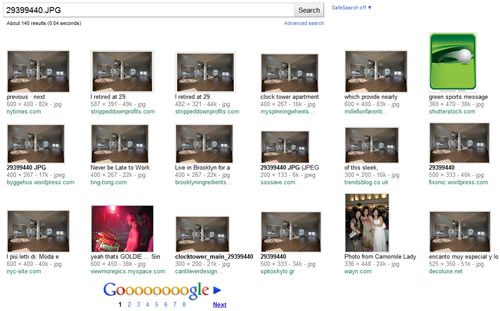
Out of the first 18 search results for “29399440.JPG”, 15 of them are Haleys house. How strange is that.
A little bit more reading leads me to this page:
http://www.nytimes.com/2009/08/09/realestate/09deal1.html?_r=1
Haley Milano lives in an apartment that cost $25m – the most expensive home EVER in the history of Brooklyn??
Hmmmm, that smells just a bit fishy to me, she lives in a $25m home, but is wasting her time selling software for $20 on clickbank?
My Conclusion: I’m not going to ask Haley Milano to marry me, I feel I can do better
My Other Conclusion
Anyone with an ounce of sense can see the sales page is 100% fiction – the story is fake, Haley Milano is fake, the images are fake, so how did it get past Clickbank and why are people promoting it?
I haven’t sold a product of my own on Clickbank for years, but when I did the approval process was a nightmare, if the wording of the page was even a little bit iffy, they’d make you change it. So how can a product like this get past the review team, and didn’t the American Government bring in some kind of legislation to stop these kind of sites?
When did copywriting amount to lying?
Update 16th March 2011
The sales page has since been taken down, but don’t worry, you can view a copy of the full “sales page” here:
https://elpassoblog.com/bye-bye-haley/
(Link to the full sales page at the bottom of the post)
P.S. Anyone wanting to get this “review” to the top of Google, I’d appreciate if you’d link back with the anchor text “Stripped Down Profits Review”, lets see if we can’t do a bit of fake sales page exposing for the greater good. It’ll be good karma and stuff.
2010: Dating, d*cks, and Meat Loaf
If you rearrange the words in the title, it will make up a sensible title for the post, it’s a little Christmas game, I hope you enjoy it. I actually had a different title, but I’ve been informed it was quite offensive, so I’m playing it safe.
I thought I’d be normal and write a quick year in review, it seems to be the “in thing” right now, must be the time of year or something.
But I’ll make mine a bit different, it will contain minimal marketing stuff, mainly because I’ve not done any! I will however include some D9 Hosting stuff in there, so anyone looking for anything semi-serious to read wont be totally disapointed with the content.
**START WARNING**
This blog post contains mild references to genitalia, if you are offended by this, please don’t read any further.
**END WARNING**
The year started with January, but it must have been an uneventful month because I’m having serious trouble remembering it. I should point out at this point that I’m useless with dates (date dates, not date dates, more on that later), so if I say something happened in March, don’t take that as gospel, it probably happened in August.
February and March were the same as January.
This blog post is starting to sound like a bad idea.
Instead of doing things by the month, I’ll just think back to a few memorable things and talk about them, they may or may not be in chronological order.
Online Dating
One of the most amusing things that happened to me in 2010 was a foray into the world of online dating with a couple of friends, it’s led to many amusing stories being shared between us, none of which will ever be discussed on this blog.
To sum it up, I’d say a lot of the stereotypes are correct, there are A LOT of really crazy people on there, but some really nice people as well, a bit like life in general really.
So if you live in a village where the number of girls/boys aged between 18 – 26 (insert your own age range there) is less than 5, or if you just fancy meeting a few new people, I’d recommend giving it a go, if nothing else some of the profiles will make you laugh.
My favourite was the bluntness of this one:
“I’ve joined *name of dating site* because I’ve just found out I’m pregnant”
Meat Loaf & Malfunctioning Penises
This happened in December, I’m 100% sure of this because it was only 3 weeks ago.
As a birthday present for my Dad, I bought 4 tickets to go and see Meat Loaf at the Manchester Evening News arena. My Dad’s a bit of a fan, but so am I, so I killed 2 birds with one stone.
I managed to get good tickets, we were in the tiered seating right next to the stage, and around 7 rows back.
During one of the songs (Paradise by The Dashboard Light), Meat Loaf and his sexy (in an older woman kind of way) female singer stopped half way through, and proceeded to bring out 2 big mechanical penises that fired t-shirts into the crowd. As we were near the front, I thought the chances of us having a t-shirt fired at us were quite high.
After a couple of shirts had been fired, the female singer (Patti Russo) turned around and pointed her penis at us. She pressed the fire button, and the penis malfunctioned, she proceeded to take the shirt out of the penis and threw it to someone in the front row, I was disappointed.
It was a very good gig though, and it contained a few more stories that will never be told on this blog, but if you are into that kind of music and he’s in your area, go see him!
I’ll include a couple of Youtube clips for your viewing pleasure, be warned that they contain a little bit of naughty language, if you want to skip most of it, jump to 1m 60s on the 1st video.
Bobby Farrell & The Thompson Curse
Bobby Farrell was the male singer in the 70’s Disco group Boney M, he sadly passed away yesterday from currently unknown causes.
This on it’s own wasn’t enough to warrant a mention in this blog post, but read on, the plot was like the custard my mum put in this years xmas trifle, it thickens.
Here are a list of gigs that either me, or a member of my family have bought tickets to in the recent past:
- Meat Loaf, 2008
- Tina Turner, 2009
- Elton John, 2009
- Michael Jackson, 2009
- Meat Loaf, 2010
- Boney M, 2011
Out of all the above, the following went as planned:
- Tina Turner, 2009
- Meat Loaf, 2010
And the rest:
- Meat Loaf, 2008 – Cancelled, cyst on vocal cords
- Elton John, 2009 – Cancelled, bad illness
- Michael Jackson, 2009 – Cancelled, death
- Boney M, 2011 – Likely to be Cancelled, death
I also have tickets to see Peter Kay in October 2011, so I’d be very nervous if I were him.
D9 Hosting
Yay, a semi serious story from 2010 that doesn’t relate to music!
D9 Hosting has been going well throughout 2010, it’s gone from being a hobby to a full time job. So much so that we took the decision to get some staff in back in the first half of the new year, which allows us to offer true 24/7 technical support.
The first few weeks were obviously a little difficult whilst we got everyone trained up, but we have a good set of customers who were very understanding, and now that the staff are trained up, I’m sure any customers will agree that any technical issues are dealt with in a timely and efficient manner.
2010 was really a year of stabilization for us, we wanted to build solid foundations from which we could move the business forward in the coming years, and I think we’ve gone a long way to achieving that. There are still a few little things that could do with some tweaking, but all in all it’s been a very good year.
With a bit of luck we’ll be ready to go on a full on marketing spree in 2011 and take the number of sites we host past 20,000.
Other “D9 Stuff” to happen in 2010 included the launch of our official Facebook page:
http://www.facebook.com/pages/D9-Hosting/20700629688
We should probably launch our own Twitter account as well, but….I have an intense dislike of Twitter :-0
I Went to Leicester
In November I drove down to a service station in Leicester to pick up a new car, can you tell I’m running out of things to write about?
I Tore my Groin
As you may (or may not) know, I’m a keen football player.
Back on August 15th I tore my groin. It’s now December 31st and I’ve only managed to play 2 games since, I think my football career may be coming to a cross roads.
Christmas
We had a Christmas in 2010, it was around 1 week ago.
Unfortunately my 88 year old Nan got rushed into hospital the day before Christmas eve, we were all prepared for the worst but thankfully after 5 days in Hospital she’s back home and back to her normal talkative whiskey drinking self. But I did spend most of Christmas going to and from the hospital.
That’s a pic of me and her from this past year:

And I know what you are thinking, why on earth is Dan wearing a suit? Well I had to, it was a wedding.
But whilst we were at the hospital, it dawned on me where I get my warped sense of humor from – it’s from my Nan! A couple of quotes from the hospital include:
“You know we were going to have a big party for my 90th birthday, I think we should probably bring it forward a year just to be on the safe side”
“I’m like the Angel of Death, that old dear (looking at the person in the next bed) was fine when they brought her in 2 hours ago, and now her feet are blue and she’s unresponsive”
New Year
Who knows what the new year will bring, I suppose we’ll find out in 12 hours and 5 minutes time.
So a very, very belated Merry Christmas and a very, very Happy New Year to you and your family. I’ll be back in 2011, with (maybe) a more serious and relevant blog post.
Toodle,
Dan
SEO 102
SEO 102 is a natural progression from SEO 101 that I posted a couple of weeks ago.
In one of the comments I was asked how I know how many times to include a keyword in the body text, how often it should be bold, how to get the perfect description and so on.
So I thought I’d show you how I do it.
I use some software called “Internet Business Promoter“.
It’s not some software that I’ve just started “using” so I can make a thinly disguised affiliate pitch to you, I’ve been using it for at least 3 years now and it’s a great tool – a bit pricey but well worth it IMO.
Before continuing, I know I said this isn’t some BS affiliate pitch for a product that I don’t actually use, but I am going to be using my affiliate link when mentioning the software, I may as well try get a tiny bit of revenue from this blog, not so I can use it to feed my hidden crack addiction (I’m very boring like that, never done drugs, never smoked, only a moderate drinker), but to help me buy shiny things for Christmas.
But anyway, here’s how I use the software.
First of all I write my content and put my site together, I write the content as naturally as possible, but in the back of my mind I’m always trying to fit my keyword/keywords in the content as naturally as possible. At this point I don’t think about the density or anything like that, I merely try and fit them in there naturally.
When I’ve done that, I upload the site to the WWW without any formatting. (Bold, italic, headlines, etc.)
I then open up Internet Business Promoter (IBP for the sake of my keyboard), and run a report on the site by clicking on Optimization > Run Report
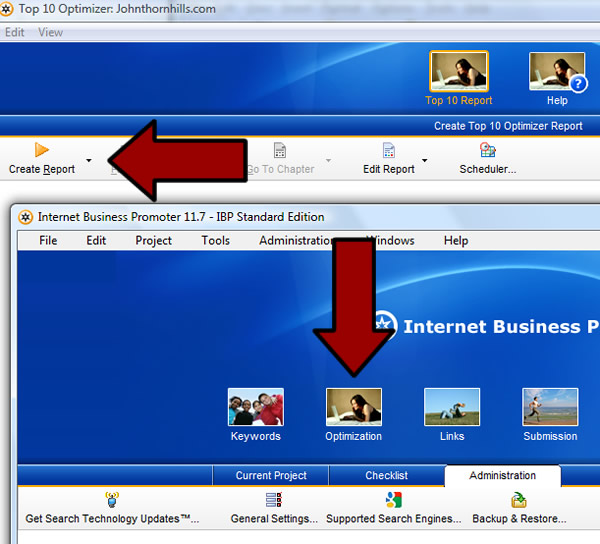
It then analyzes the current top 10 listings on Google (or the search engine you choose) and compares them to your page. It then cleverly tells you what you can do to your page, to improve the on page optimization to take it above your competition.
It presents these findings to you in a nice easy to read report, with a percentage score at the top of the page. The idea is to get your page as near to 100% as possible, I’ve never actually got a page to be bang on 100% but in my experience 80% and above will usually go a long way to help you rank well in the organic search results.
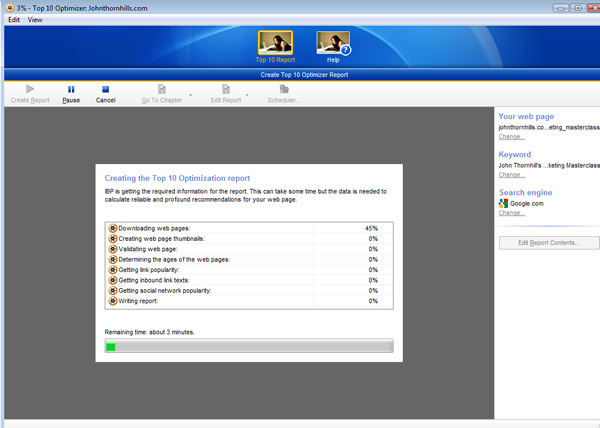
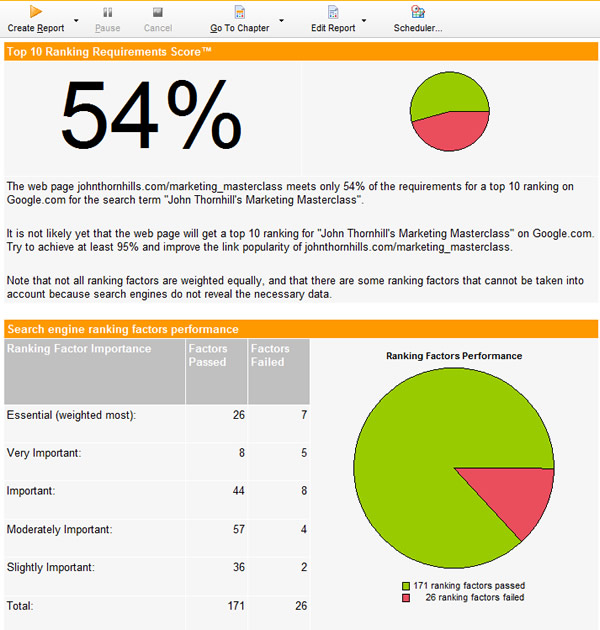
You can see from the above picture, that the site I just ran the report on only scored 54% so that’s not too good. So how do we change that?
Well, we read the report of course 🙂
There are lots of things I can change to make it better, but I wont show you all of them as it’ll probably take all day for me to write. So I’ll just show you an example of the sort of things it tells you to do, the screenshot below shows you how I can improve my page <title> to make it more appealing for Mr Google.
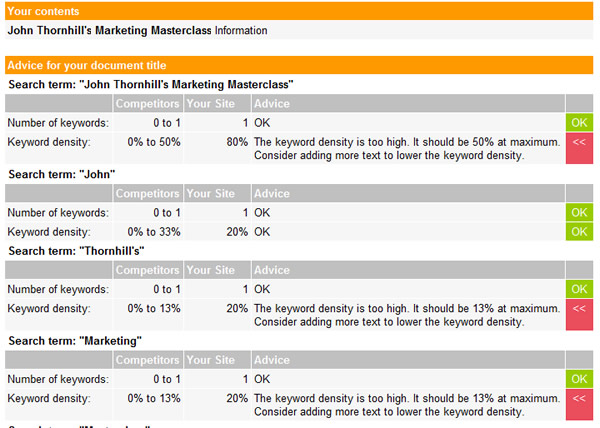
It tells me that the keyword density in my <title> tag is too high, so what I need to do is have a rethink and come up with a new <title> that isn’t so keyword heavy.
When I’ve done that, I can re-run the report and see if my page score has improved.
It’s basically just rinse and repeat – run the report, implement the suggestions, run the report, etc.
If you keep doing that, then eventually you’ll have the perfectly optimized web page, ready to get you a top ranking in Google.
Don’t believe me, do a search on Google for “Lovefilm Review”.
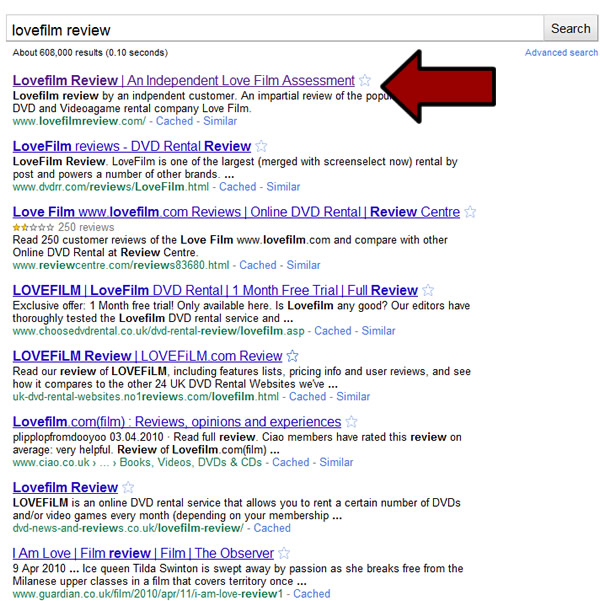
You’ll see that the number 1 site in the organic search results belongs to me. I have many sites like that, all with page 1 rankings, but I don’t mind showing you the Lovefilm one – you can compete with me all you like on that keyword, it was doing well until Lovefilm decided to have a change of policy and banned affiliates from using the Lovefilm trademark in domain names, so I’m no longer a member of their affiliate program. So if anyone wants to make me an offer for that website, go ahead, maybe you can make money from it in some other way!
So that brings to an end this blog post, as I said, it’s not a full on affiliate pitch trying to sell you the software, it’s just an insight into what I use. If you want to check it out, then go ahead, there’s a 30 day free trial, if you don’t, then not to worry!
Thanks for reading.
Dan
It’s Back….But Not in Black
It looks like a light shade of Orange to me.
I was going to make this post yesterday but I was busy losing tups, no losing them as in “crap, where have they gone”, but losing them as in “go forth and spread your seed you fine chaps”.
I’ll admit that it didn’t take me all day, but by the time you’ve been tossing throwing them around all day my arms couldn’t really take any typing, so I retired to the TV.
But here I am this morning, arms slightly less sore, and able to type relatively coherent sentences.
So what’s back?
The A-Team?
Meatloaf?
Shell Suits?
Baked Bean Rounders?
Blankety Blank?
Gordon Brown?
No silly, it’s something with fewer explosions but more corned beef, something less of a fire hazard but more tasty, something where you just need to fill in the blanks but less useless.
^^I promise you that the above sentence does make sense….if you live inside my head
FREE MONTHLY WEBSITES IS BACK!!
To be honest I wasn’t aware it had gone anywhere, but I’ve now been informed that Free Monthly Websites 1.0 has been taken away by Tiny – only 3 other people will get that joke, and none of them read this blog, what a waste.
So 1.0 has now been replaced, not surprisingly, by 2.0 (I have it on good authority that 3.0 will be the next one)
It’s sad to see 1.0 being turned into dog food but we do have to learn from the past, and we have to admit that 1.0 did have it’s faults.
It was like a cat we once had, it was very friendly, but it kept falling over.
Free Monthly Websites (FMW) 1.0 was friendly enough to snuggle up to, but you did need a bit of HTML knowledge to edit and personalize the websites. Whilst my own personal view is that you really should have some basic HTML knowledge if you are doing anything online, I’m not here to judge you, and if you don’t have any HTML skills then FMW 1.0 would have been a bit of a challenge for you.
It was also limited in what you could do with it, the creators of FMW (John Thornhill and Dave Nicholson) hadn’t really been marketing for all that long, so didn’t have much of an idea about what worked and what didn’t when it came to the websites.
But 4 years on, they are a lot wiser – John has come to realize that it’s not possible for Sunderland to be anything other than a mid-table team, and Dave now understands that Alan Shearer isn’t a bloke that comes to my house to clip sheep.
They are also a lot wiser when it comes to Internet Marketing.
After the feedback they received from FMW 1.0 customers, they’ve put their minds together and come up with 2.0.
The main aim is to keep everything as simple as possible, so FMW 2.0 has been built on an engine that I know a lot of you are already familiar with, it runs the PlanetSMS/Planet Divinity eBook and software websites. So everything is controlled via an online admin area, this means:
- No HTML!
- No MySQL Databases
I suppose it’s kind of like WordPress, but tailored towards an all in one solution for creating content rich affiliate websites.
I’m getting hungry, and when I get hungry, I tend to fill out the posts with a screen shot. So allow me to introduce you to what the admin area of a Free Monthly Website will look like:
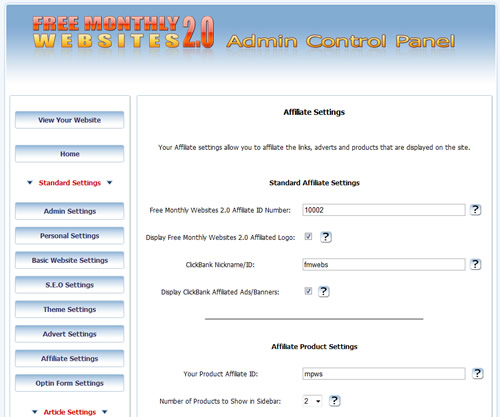
I was going to take another screen shot of the front end of a site, but I’ve had some Monster Munch and the hunger has subsided.
Plus there are tons of screen shots on the FMW website that you can take a look at, saves me cluttering up cyber space with duplicate images!
I’m sure there was something else I was going to say, but can’t for the life of me remember what it was.
So for now I’ll have to leave you with my closing statement about Free Monthly Websites.
Free Monthly Websites 2.0 is a great update to the original. It takes all of the good points of 1.0 and builds upon them to turn FMW 2.0 into a much better all round system.
If you were a FMW 1.0 customer, then you’ll probably have already signed up, but if you are a newbie and are wondering what all the fuss is about, please go ahead and check it out. It does exactly what it says on the tin – you get a free affiliate website every month, no strings attached!
Thanks for reading,
Dan
P.S. D9 Hosting now has a Facebook page….and we may actually use it, so please feel free to “Like” us!
If It Looks and Smells Like a Turd…
I should be sat eating a nice ham and egg sandwich now, but instead I’m on here thinking how best I can communicate what I’ve just seen.
I’m not an irrational angry kind of guy, but I’ve just seen a video that made me think to myself “What a couple of *****”
It’s a recorded phone call between two Internet Marketing syndicate members and was recorded in the build up to the launch of a product called “Video Boss”.
The recording includes more heavy breathing than 2 asthmatics making a porno, but the content goes a long way to exposing what these guys really think of their customers (you and I) so stick with it. There’s also a hilarious comment in there about some magic mushrooms (coz drugz iz well cool lolzpmslrofl!!), so at least they are putting all those immoral earnings to good use.
If you want to see what sort of snakes that are behind these massive launches, there you go, might make you think twice about buying anything from them next time?
And I know I may get a few angry unsubscribes for “ratting out” these guys, but come on, how can anyone with any kind of moral compass not feel just a little bit pissed off with the way these people conduct themselves. If you have a blog or a mailing list with any kind of following, would your readers appreciate it if you let them into the kind of crap that’s been going on lately?
I can’t go without quoting the original source, if you’ve never come across the SaltyDroid site before, have a read through, it’ll take you a while but it’s a real eye opener, which side of the fence are you on?
Original Video Source: Strong language warning
http://saltydroid.info/syndicate-shit-storm/
Update: The Salty Droid website is getting hammered by traffic (as you can imagine!) since this video was posted, so getting a connection to it may be a bit hit and miss, but if you keep trying you should eventually get on
Receive FREE Email Updates, according to one reader it's....
"Better Than A Poke In
The Eye With A Sharp Stick"
Currently Enjoy This Blog More Than Christmas.

Follow Me Via RSS!

Subscribe to this site's RSS feed.