

How I Dominated Google For Resell Rights Fortune
How I Dominated Google For Resell Rights Fortune
Hello, welcome, greetings, good to see you etc, etc, etc.
Today I come bearing gifts, it’s not gold, frankincense and mur, but it’s something that could be just as valuable in the long run. I’m going to show you how I “took over” Google during the launch of Resell Rights Fortune.
Just a bit of background info before we get started.
Resell Rights Fortune is a product from Socrates Socratous, that was released on the 9th June. The product allows you to save time, by searching through a database full of different resale rights and private label products – eBooks, scripts, software, videos and so on.
Socrates asked me to promote the product for him a couple of weeks before the launch, so I put my thinking cap on and decided upon a plan of action.

As there was still 2 weeks until the launch, I decided to use a method I’d used in the past. I’d create a simple WordPress Blog, purchase a related domain name, and add some good content to the blog that relates to the product, and if all goes according to plan, I’ll end up with a good placement on Google.
I’m pleased to report that my plan worked, take a look at the image below!
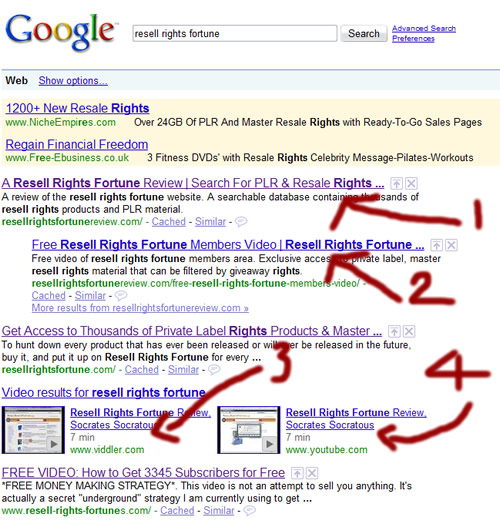
As you can see, I take the first, second, fourth and fifth position on Google for the term “Resell Rights Fortune“, I even pushed down the actual Resell Rights Fortune site into 3rd place. (Sorry Socrates:-))
You are probably thinking that’s all well and good, but does it actually get any traffic?
Simple answer, yes, it does. More proof for you below:
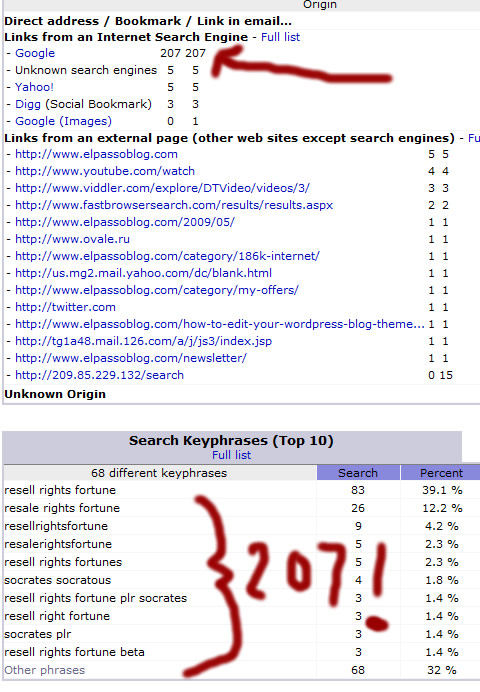
As you can see, the site received 207 hits from Google during the launch period, all of these people looking for more information on the Resell Rights Fortune product.
The site that took me less than 2 hours to setup, has helped to bring in over $2,000 in sales of the product so far, so it does work! Yes, I did send out a mailing to my list that also contributed to the sales total, but the number of clicks generated from the email was 182, so even if we say it was a 50/50 split between the list and the site, it’s still $1,000 which can’t be sniffed at for 1 simple site.
So hopefully I’ve given you enough evidence there to show you that what I did does actually bring back results, so here is EXACTLY how I did it:
1. I purchased the domain name www.resellrightsfortunereview.com from D9 Hosting. ($9.99 per year)
2. I found a WordPress theme that I liked, and then set up a blog on the domain which again, I hosted with D9 Hosting. ($6.95 per month)
3. I created a quick “sneak preview” video showing you what it was like inside the members area. I then distributed the video to a network of video sites using Heyspread.
4. I wrote some posts that I could put on the blog, each showing the reader different aspects of the Resell Rights Fortune (RRF) Product.
5. I put a link to the RRF blog on this blog, so Google could find it.
6. Once Google had indexed the site, I posted a new article every few days to keep the content fresh.
That’s it!
There really is nothing to it, so why not give it a try next time there’s a big product launch coming up? It’s a lot easier to get a few hundred hits from Google than to build a few hundred new mailing list subscribers 🙂
I’ve also just realized that I did make a blog post similar to this way back in October…..although in that promotion I used a slightly different method, so if you want another twist on the method check out the following post:
https://elpassoblog.com/how-one-video-dominated-google-for-john-thornhill-coaching/
And that just about wraps it up for this weeks blog post, I know a lot of you are first time readers, so I hope you found the information useful, and do let me know if you have any questions or feedback by leaving a comment in the section below.
Cheers!
Dan
My PPC Web Spy Case Study
It’s free, it’s made by Brad Callen, it’s free, it allows you to legally steal your competitors keywords, it’s free, the upsell is interesting, it’s free and…it’s free, so what’s the catch?
Well, there isn’t one really. It’s actually a very cool free tool that can be very powerful – as I’m about to demonstrate, the only questionable thing would be the morality of stealing/spying on your competitors keywords.
I’ll leave you to make your own minds up about the moral aspects of it, but I find it very useful. So here’s a quick case study I’ve done using PPC Web Spy and everyones favourite boring, generic niche – WEIGHT LOSS! 🙂
So the first thing to do (After you’ve installed PPC Web Spy of course) is to do a search on Google for the niche you are working in. In my example I’ll search for “Weight Loss”.
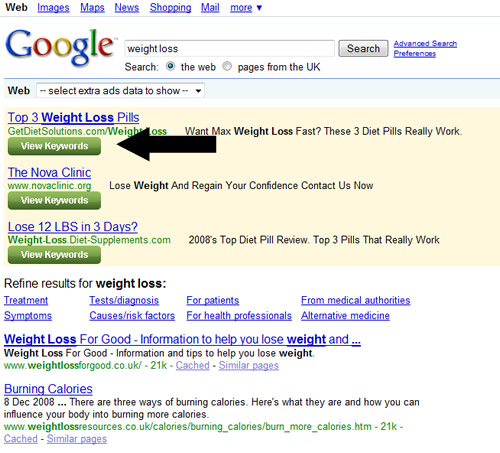
You’ll then see that we get a lot of “Sponsored Ad’s” and under each of these ads is a green “View Keywords” button. If you click on this button it allows you to view a list of all keywords the website is bidding on, how much it is costing them and how many clicks they can expect to receive on a daily basis.
Here are the results I get for the #1 “Weight Loss” ad on Google.
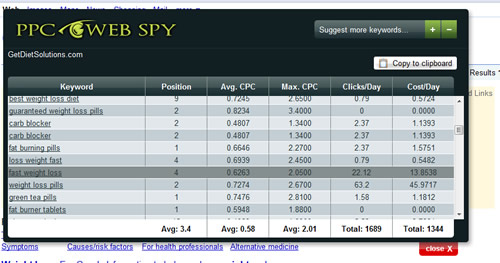
You can see that the site is bidding on loads of different keywords, so from that you can take a closer look at each of the keywords and see which would relate to your site. You can also find even more keywords by searching for one of the keywords brought back by PPC Web Spy.
I’ll show you an example.
One of the keywords the site was bidding on is “Tonalin”; now I have no idea what this is, apologies if it’s something rude, but it’s a good example to use.
So all I’ll do is go back to Google and search for “Tonalin”.
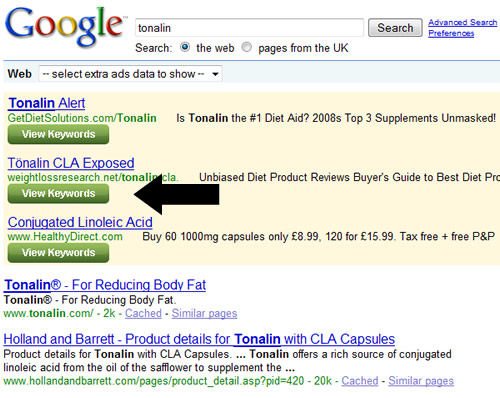
You can see there are a lot of sponsored ads, and we can then view the keywords using PPC Web Spy.
This time I’ll check out the 2nd site, and as you can see from the screen shot below, it brings back even more keywords for me to look through. I’m in weight loss keyword heaven – if only I had a weight loss product I’d be rich! 🙂
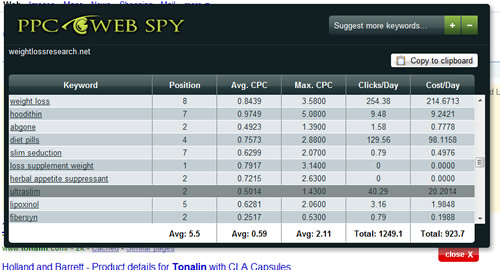
So that’s a very quick example of how the free PPC Web Spy tool could help you. I’ve used the weight loss niche but you’d obviously use it on whatever niche you worked in. You could also use it to research any new potential niches by looking at the estimated clicks and the daily costs.
There is also a VERY interesting upgrade available that again, may be slightly immoral for some of you so I’ll leave you to make your own minds up about it!
So now you know how it works, click here to download PPC Web Spy for FREE!
How One Video Dominated Google For John Thornhill Coaching
Hello everyone, and welcome to a fairly overdue blog post!
This week I’m going to show you how a spoof video I created a couple of weeks ago helped me to dominate the 1st page of Google results for a particular search term.
It all started around a month ago when John Thornhill (the eBuwk guy with the funny accent!) asked me if I’d like to promote his coaching program, having worked with him countless times in the past I agreed and started to plan out what I could do to promote it for him.
The most obvious answer, and this I’m sure is what most people would do, is to simply write out some email copy and then send it off to you guys. I would no doubt make a few sales that way, but once the initial mail had been sent, the sales would stop after a few days and I’d have no more sales coming in after that, so I needed to come up with a plan to get a steady flow of on-going sales.
I decided I would first purchase a domain that was related to the search term, and then I’d do a spoof “expose” on the coaching program, providing visitors with an idea of what they would receive when they signed up for the John Thornhill Coaching Program. Central to this page would be a spoof video, and the spoof video wouldn’t just be to provide content on the page….
Before we go any further, here’s the video I created:
Edit: I’ve just noticed that after publishing this post, all the traffic seems to have crashed the Viddler video above, so in the meantime here’s a Youtube link to the video:
http://uk.youtube.com/watch?v=Ct_EAaRs_z8
I’m fully aware that the video is incredibly stupid, but it does the job it’s supposed to. It grabs the viewers attention with the kids voice at the start, and then the crazy Irish lady (Disclaimer: not all Irish people are crazy ;-)), it almost makes you want to keep watching to see what stupidity is going to come next!
I then provide them with a small bit of content, showing the viewer a brief glimpse of the coaching members area, and explaining what they can expect to achieve if they decide to take up the coaching offer. Just as I’m about to reveal the week by week information, I get cut off “By John”, and you are urged to head on over to the site to view the rest of the “expose”.
You’ll also notice that I leave the URL of my webpage on the screen for quite a long time at the end of the video, a lot of people when creating videos, leave the URL on screen for a few seconds and then it’s goes away. The URL at the end of the video is the most important thing, so make sure you give the viewer time to read it!
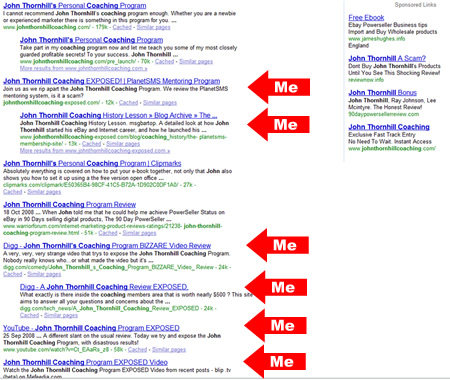
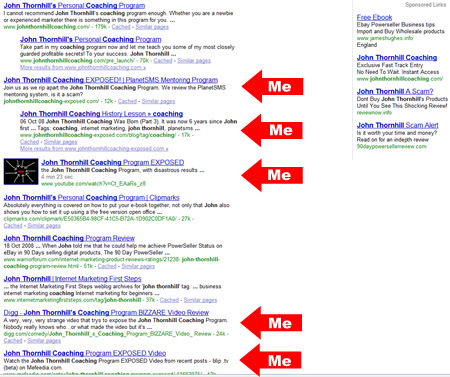
With the video out of the way, take a look at the screenshots below, they show you the search results for “John Thornhill Coaching” on both Google.com and Google.co.uk. Take a look at how many of the results on page 1 are mine, there are even 4 people paying for Google Adwords ad’s, and I’m out-ranking them with my stupid video!
Here is the first page of Google.com
And here is the first page of Google.co.uk
So now you want to know how I did it?
I actually showed John what I was doing and he said I should document it (as I’m doing now) and then sell it as a $7 report. And as I’m writing this the thought is still crossing my mind, should I give you the information for free or should I charge for it?
You are lucky I’m in a good mood, so I’ll continue with the freebie. If you do feel like giving me a little reward, do check out the “My Offers” category of this blog and see if there is anything on there that takes your fancy!
So, the first thing I needed to do was submit the video I created to a number of different video sites, believe it or not there are actually other video sites out there besides Youtube and Google video.
So I used a service called HeySpread – not an affiliate link, what’s wrong with me today!? 🙂
For around $1 they’ll submit your video to around 20 video directories for you, well worth the very small price you pay if you ask me. With the video is a description explaining what the video is about, and of course, the obligatory link back to my John Thornhill Coaching “Expose” page.
As each video gets added to the video site, it gets crawled by Google and the page gets indexed. In some cases it also indexes the link back to my site – each from a different IP address.
Finally, I “Dugg” both the Youtube video, as well as my “expose” page, again some more back links from different IP addresses.
Not too difficult was it?
With the video, and the landing page I now take up 6 out of the top 10 positions on Google for my search term, and I’d like to bet it will be 7 out of 10 when this article gets indexed.
That’s all for today, but before I go, it would be rude not to point you in the direction of my John Thornhill Expose landing page so you can see what all the fuss is about!
You know the drill by now, any questions, leave a comment, and so on 🙂
Cheers,
Dan
I Think I’m Under Charging You
It was my Dad’s birthday last night, so we all went out for a meal – Me, Mum, Dad, Brother and his Girlfriend. As we walked through the stiff creaky door we approached the rather intimidating manager, she towered over us like a menacing menu bearing giant, but it was raining outside so we didn’t mind, all we wanted was to sit down and eat after a hard day.
We were directed to a table, the wooden floor banged as we pulled back our sturdy wooden chairs and sat down to read the menu. Looking around we could see we were the only people sat in the eating area, nobody said anything, but I could tell we were all thinking the same thing – How is Dan going to turn this into a blog post?
Quite easily actually 🙂
Fast forward a couple of hours and we were waiting for the deserts to arrive. On the menu was a very strange “Chocolate and Rhubarb Crumble but that’s not important right now. We were all chatting away, well, four of us were chatting away – my brother appears to still be shaking off the shackles of puberty so he managed a grunt every now and again.
Conversation turned towards my brother’s girlfriend, who happens to work for a local IT company that provides web hosting, design, coding and other similar services to schools and businesses across the UK.
With me running a similar venture in D9 Hosting, I was curious to see how the company was run. After a bit of background information, we turned to pricing, where I was amazed to hear:
“We charge £250 to install Google Analyticsâ€
£250 for Google Analytics! That’s almost $500 to place a few lines of JavaScript on a page!
They also charge a similar price to setup Google Docs for customers, and charge an arm and a leg for web design and hosting. Their monthly sales target is £100,000 (about $200,000) and with those sorts of prices it won’t surprise you that they meet it most months.
Now there’s no way we could charge you that sort of price for any of the services I’ve mentioned, you would all probably have a rough idea of how much to pay for that sort of work – and it would be a lot less than £250!
*FYI, there’s actually a couple of Google Analytics “How To’s†on this blog, you’ll be able to find them using the search bar on your right*
BUT, the vast majority of offline businesses are still more than happy to pay top dollar for IT services, be it web design, hosting, script installation or consultation, and what’s more. I think that 95% of you reading this are more than capable of providing these services – skills you pick up on your Internet Marketing journey are more valuable than you could ever imagine.
Just ask yourself if you can install Google Analytics?
I’m sure most of you answered “Yes†to the above question, and I’m sure you know some offline people who run websites, why not see if they’d be interested in having you install it for them?
That’s just one example of taking what you’ve learnt in the online world, into the offline sector, there are many, many more ways to do this. I am currently working on a big offline project with my D9 Hosting partner, Paula, that should be launching in the next few weeks so stay tuned for that.
Nothing much to add, just really made the post to open your eyes to the opportunities that exist away from the PC screen!
That’s all for today, I was going to hold off writing this until Thursday but thought I’d get it down on paper whilst it was all still fresh in my head.
As always comments are my friend and yours, so do leave one if you have any questions.
Cheers,
Dan
P.S. I had a Bacon & Cheese Burger and a Knickerbockerglory (sp?) for desert – 7/10
How To Set Up Google Analytics eCommerce And Goal Tracking
It’s a wet and windy morning here in Yorkshire, which means it is perfect weather for me to write part 2 of my Google Analytics guide. In part 1 I showed you why Google Analytics is so cool, and I gave you some very basic instructions on how to set it up on your website.
In part deux, I’m going to give you a comprehensive step by step guide, showing you how to use Google Analytics to track your e-commerce transactions.
Before I start let me just give you a quick run-down about the different “goals†and e-commerce tracking options, depending on your site some of the guide might not apply to you.
In this example, as well as setting up basic tracking so I can see what the conversion rate for my product is, I’m also going to be setting some goals. Goals can be used for any number of things, you could have a goal set up to see how many visitors sign-up to your newsletter through your opt-in form, or you could use it to see how many people go through your shopping cart and go on to make a purchase.
In my example I’ll be showing you how I use Goals to track how many customers make it through the D9 Hosting shopping cart! Don’t worry if it isn’t making sense, it should all start to come together when you read the guide.
So with that out of the way, let’s get started!
Step 1
This is a nice easy start for you, if you already have an Analytics account then simply log in to your dashboard (admin) area. If you don’t yet have an account then you’ll need to sign-up first – it’s free!
http://www.google.com/analytics/
Step 2
Next we need to create a profile for the website that you wish to generate the stats for. With you now logged into your dashboard, click on the “Add Website Profile†link.

You then need to fill out the small form with the details of your website, it’s all very straightforward but I’ve added a screenshot showing you my settings if you need to use them as a guide.
When you have entered all of the information, click on the “Continue†button.

Step 3
Moving swiftly on to step 3 and one of the most important parts of the process – The Tracking Code!
After clicking on “Continue†in step 2, you will see a screen like the one below:
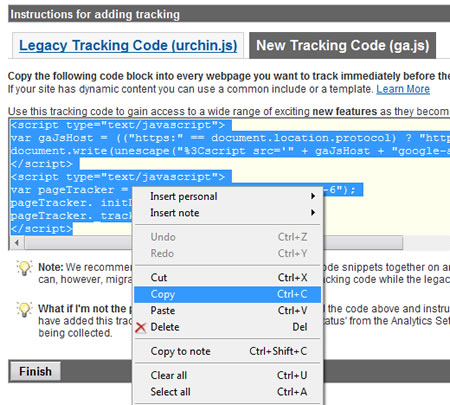
You are presented with 2 types of tracking code, Legacy and New. I prefer using the New tracking code as it helps get your site ready for any future Analytics features that wouldn’t be available if you were using the old code.
So select the new style code, highlight it and “Copy†it to your clipboard. (Right click on the highlighted code and select “Copyâ€)
After you have copied the code, click on the “Finish†button. Don’t worry if you lose the code, you can always retrieve it later!
Step 4
Next we need to add the code that we just copied in Step 3 to EVERY page we wish to track – this should be every page on your website, not just the home page!
You should paste in the code just before your closing </body> tag in your HTML source code.
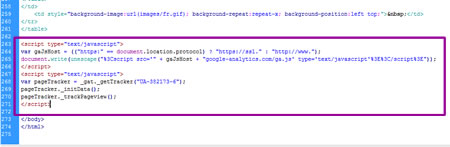
If you have a site with a lot of pages, you could do a global find/replace and find:
</body>
And replace it with:
**The google tracking code here** </body>When you have added the tracking code to all of your pages, you then need to upload the pages to your web space.
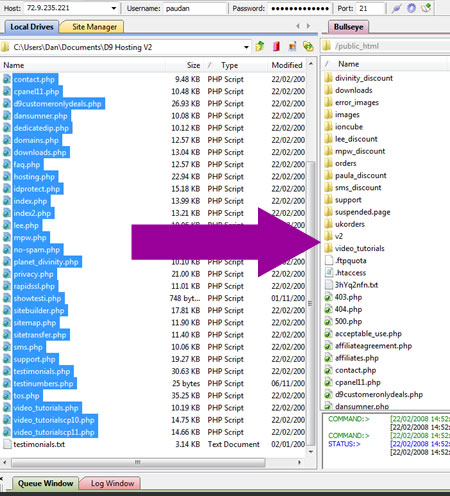
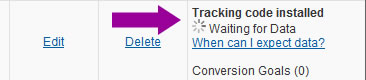
If you then go back into your Google Analytics account and look at the Status of your tracking code, you should see a “Tracking code installed†message next to your website profile. If you don’t see this message try again in a few minutes, if you still see errors after a few minutes you need to double check you have pasted the tracking code into your pages correctly.
Step 5
With the tracking code installed, we need to then tell Analytics that our site is an e-commerce website and that we wish to track sales and conversion rates!
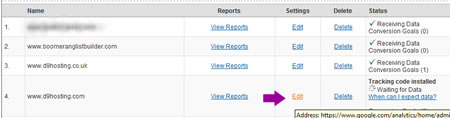
To do this, click on the “Edit†link that appears next to your website profile.
You will then see a set of e-commerce options that you can edit, make sure you select “Yes, this is an e-commerce website†and that you select the correct currency that your site sells items in.
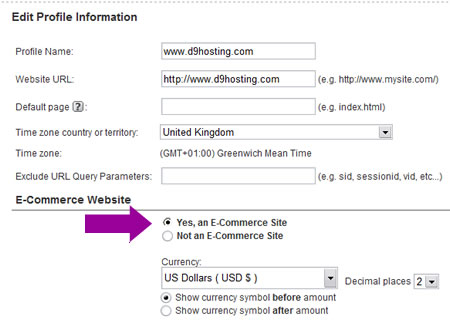
When you are done, click on finish.
Step 6
I am now moving onto “Goalsâ€. If you only have a 1 page website and just want to track sales, you can skip to part 7!
In this example I’m setting up Analytics for www.d9hosting.com
One of the things I wish to track is the effectiveness of the shopping cart. The cart is made up of multiple stages, part 1 you select the hosting package, part 2 you select the domain name and so on.
Setting up goals allows me to track visitors as they go through the different steps, it also shows me if the abandon the cart, and at which point they abandon. If a lot of people abandon the cart at the same stage, I know there is a problem and I need to take a closer look!
So now you know why I’m setting up the goal, here’s how you do it:
Find the “Goals†section for your website profile, and click on the “Edit†button:
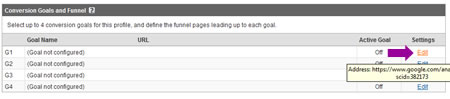
You will then be presented with a screen asking you to input your goal details.
To save typing out everything here, I’ve taken a screen shot showing you how I set up my goals for my hosting shopping cart:
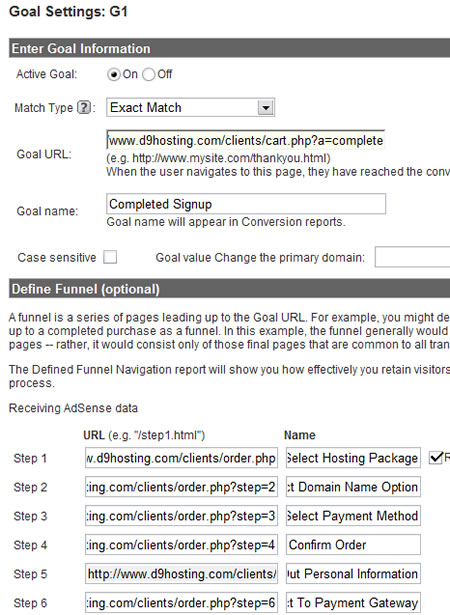
Your funnel URL’s will obviously be different to mine but as long as you get the URL’s in the correct order you shouldn’t have any problems!
You can also make things easier by not defining a funnel at all. This would be useful if you wanted to track newsletter sign-ups. You would just set the “Completed Goal†URL as:
http://www.yoursite.com/Thankyouforjoining.htm (Or whatever your opt-in success page is called!)
When you are happy with the settings, click on the Finish button and you are done, wasn’t so bad was it?
Step 7
The final step for setting up e-commerce tracking is to add some extra code to our “Thankyou†or “Download†page, in simple terms this is the page that the users gets sent to after they purchase your item/s.
You should already have the default tracking code installed on this page, but you also need to add an extra bit of code, this allows you to enter the sale amount, the order ID and so on.
You can see full details here:
http://www.google.com/support/googleanalytics/bin/answer.py?hl=en&answer=55528
But in short, you just need to add the following code under the “pageTracker._trackPageview();†line of the default code:
pageTracker._addTrans( “1234”, // Order ID”Mountain View”, // Affiliation
“11.99”, // Total
“1.29”, // Tax
“5”, // Shipping
“San Jose”, // City
“California”, // State
“USA” // Country
);
pageTracker._addItem(
“1234”, // Order ID
“DD44”, // SKU
“T-Shirt”, // Product Name
“Green Medium”, // Category
“11.99”, // Price
“1” // Quantity
);
pageTracker._trackTrans();
*Please don’t copy/paste the above code, copy it from Google instead. WordPress tends to make a mess when you copy/paste code.
Your final code should look like the code on the Google page here:
http://www.google.com/support/googleanalytics/bin/answer.py?hl=en&answer=55528
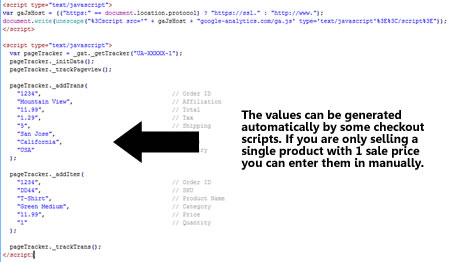
If you are only selling 1 product then you can enter the values manually, if you are using a shopping cart you should be able to use it to pass the details into the Analytics tracking code. Please contact your script vendor if you are unsure about how to do this.
That brings to an end this guide, Analytics usually takes around 24 hours to update so you’ll have to wait until this time tomorrow to see your results, but once you have everything set up correctly it’s a great resource for any webmaster to use!
Thanks for reading, and I hope you have found it useful.
Let me know if you have any questions,
Regards,
Dan
Receive FREE Email Updates, according to one reader it's....
"Better Than A Poke In
The Eye With A Sharp Stick"
Currently Enjoy This Blog More Than Christmas.

Follow Me Via RSS!

Subscribe to this site's RSS feed.